Managing OVOC License
The OVOC server requires an AudioCodes product license. You must obtain this license from AudioCodes, and then load it to the OVOC server. .
See Managing OVOC License Features for descriptions of the license features.
| ➢ | Do the following: |
| 1. | In the Application Maintenance menu, choose License. |
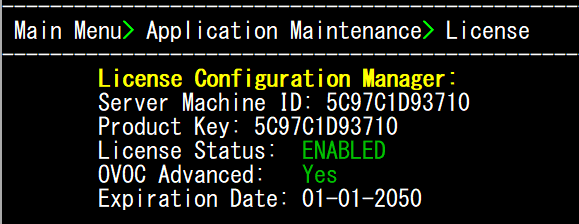
The table below describes the License Configuration parameters.
|
Parameter |
Description |
||||||||||||
|---|---|---|---|---|---|---|---|---|---|---|---|---|---|
|
Server Machine ID |
The ID of the OVOC server machine that is used to generate the Product License Key. |
||||||||||||
|
Product Key |
The Active Product License key. |
||||||||||||
|
License Status |
Indicates that the OVOC license is valid and active. |
||||||||||||
|
OVOC Advanced |
Indicates whether the Voice Quality license is enabled (default: No). When set to default, the followingVoice Quality feature licenses are available:
When set to Yes, the above parameters can be configured according to the number of purchased licenses. |
||||||||||||
|
Expiration Date |
The expiration date of the OVOC license. The time zone is determined by the configured date and time in the Date & Time menu (Timezone Settings). |
| 2. | Copy the Product Key and Server Machine ID strings to notepad. |
| 3. | Open the AudioCodes Software License Activation form. |
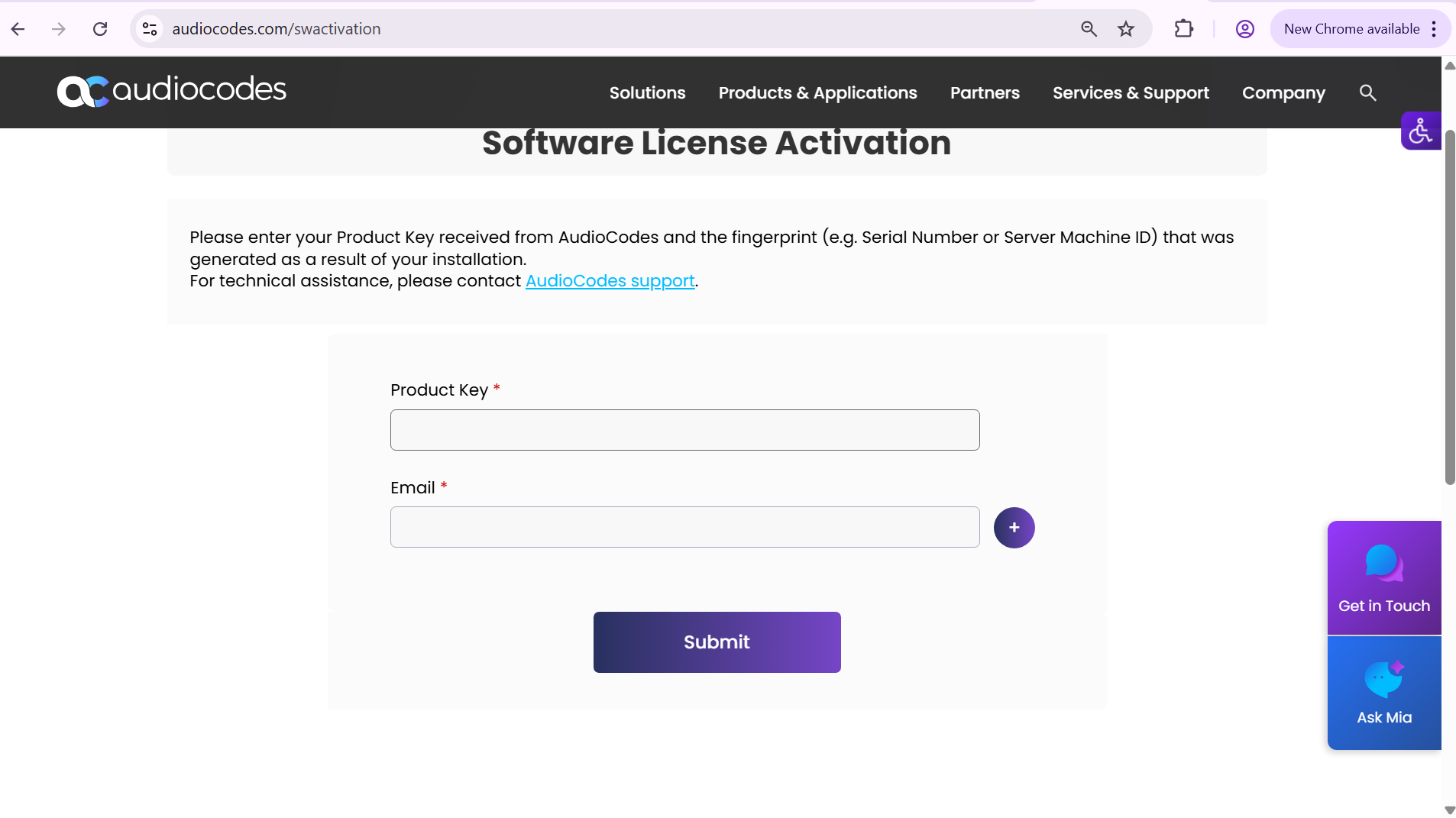
| 4. | In the Product Key field, enter the Product Key that you extracted above. |
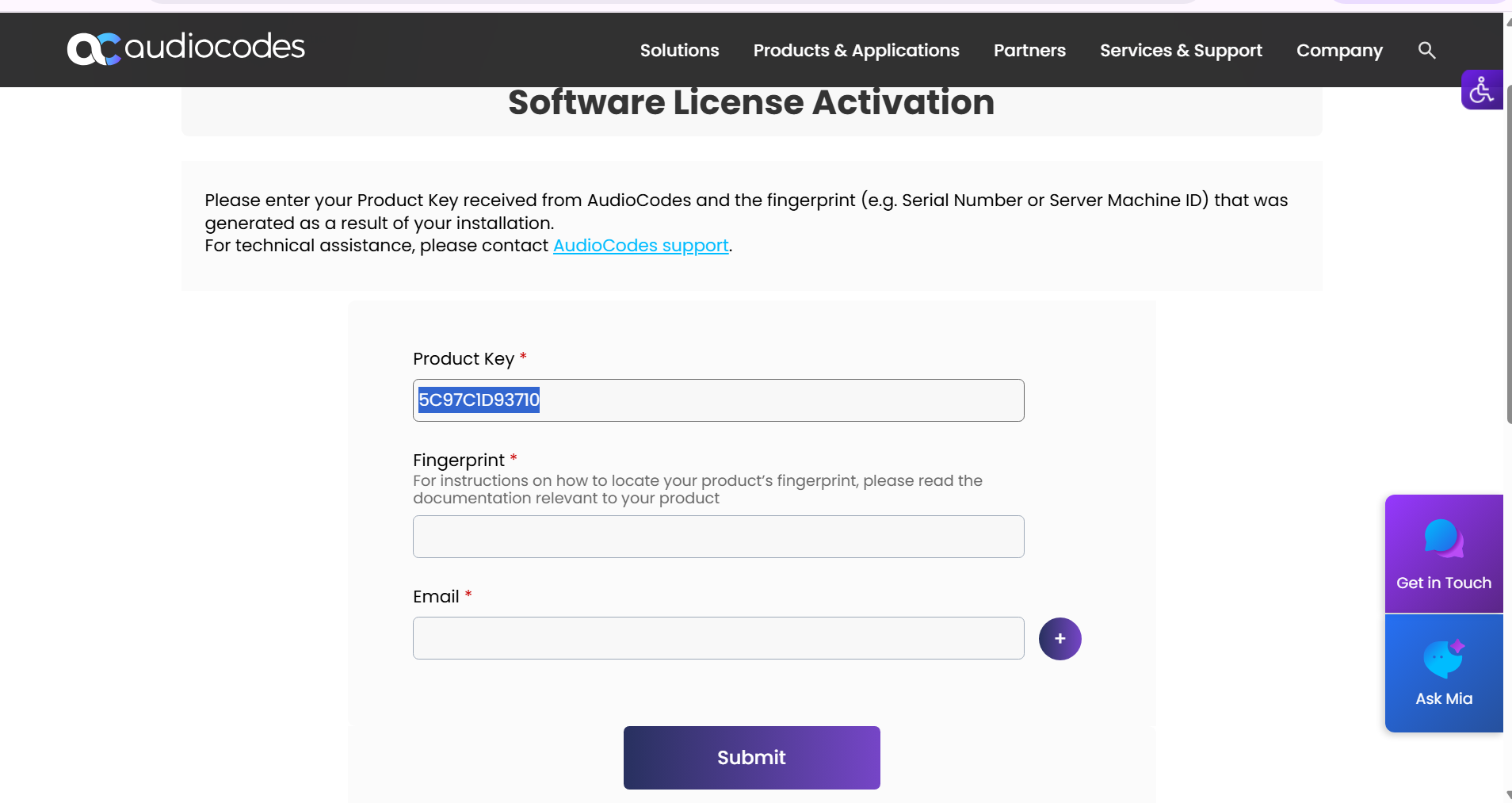
| 5. | In the Fingerprint field, enter the Server Machine ID that you extracted above. |
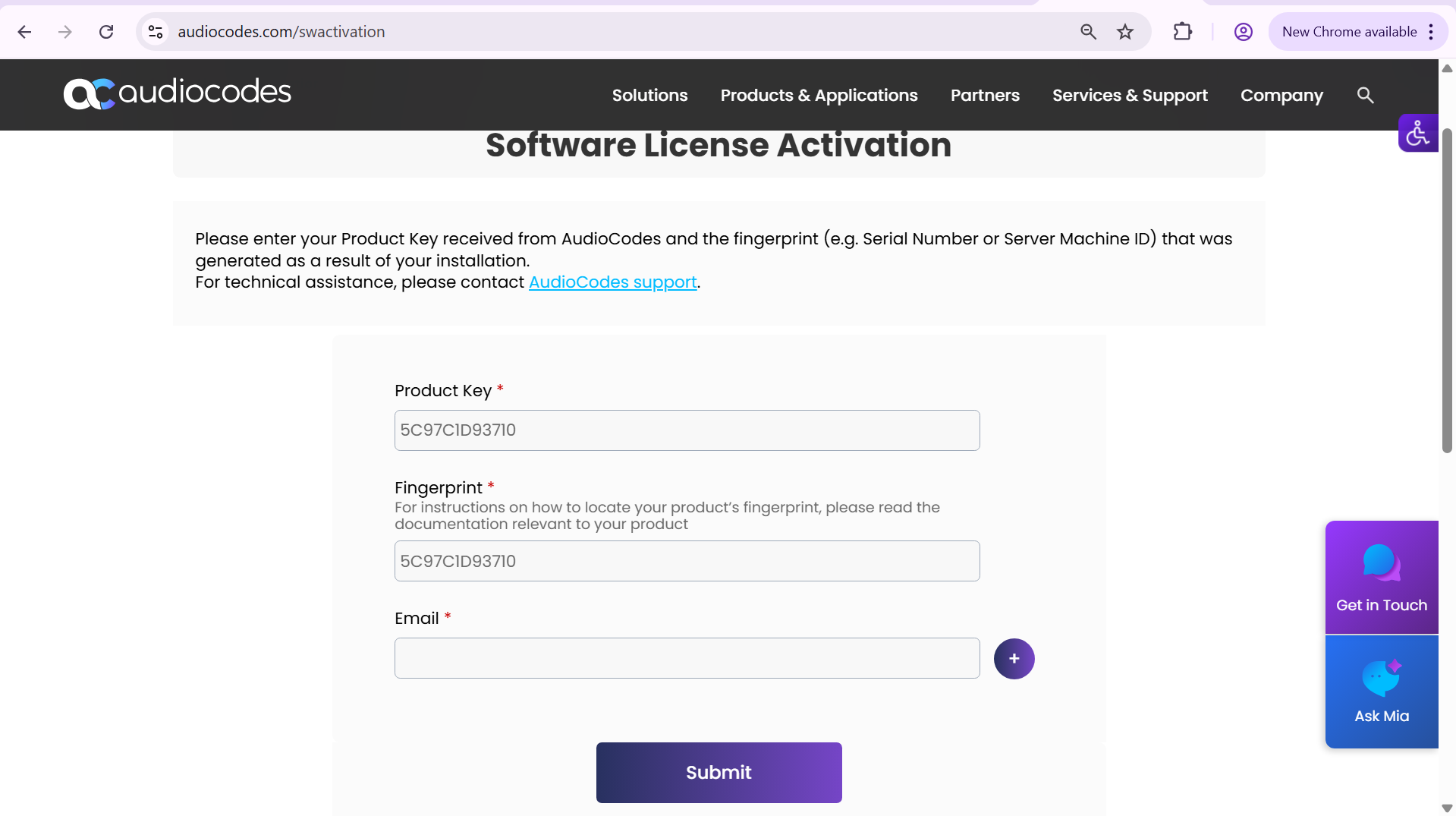
| 6. | In the Email field, enter the email address of your AudioCodes support representative, and then click Submit. |
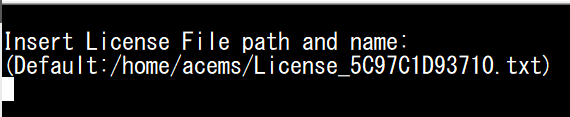
| 7. | Once you receive the new license file from AudioCodes, copy it to the following path on the OVOC server machine: |
/home/acems/<License_File>
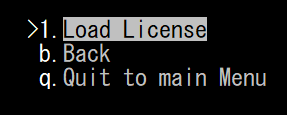
You can optionally choose the menu option Load License to verify or change the path.
| 8. | Restart the OVOC server application (see Start or Restart the Application). |